Garmin Integration
JTrack Social supports Garmin wearable integration using the Garmin Health Standard SDK. The integration enables collection of physiological and behavioral sensor data directly from supported Garmin smartwatches while maintaining GDPR-compliant study workflows. We use a direct Bluetooth connection between JTrack Social and the Garmin device.
The Garmin integration currently supports:
Background synchronization
Local device-to-phone synchronization
Secure upload to the study server
Firmware updates of connected watches
Configuration of connected watches
Wearable Sensors include:
Actigraphy
BBI
Calories
enhancedBBI
Heart Rate
Respiration
Skin Temperature
SpO2
Steps
Stress
Wrist Status
Zero Crossing
Note
Garmin wearable functionality is only available in studies where Garmin support has been enabled by the study administrator.
Getting Started (JDash Study Setup)
To enable Garmin support in a study, Garmin wearable sensors must first be configured in the JDash study editor.
Example configuration:
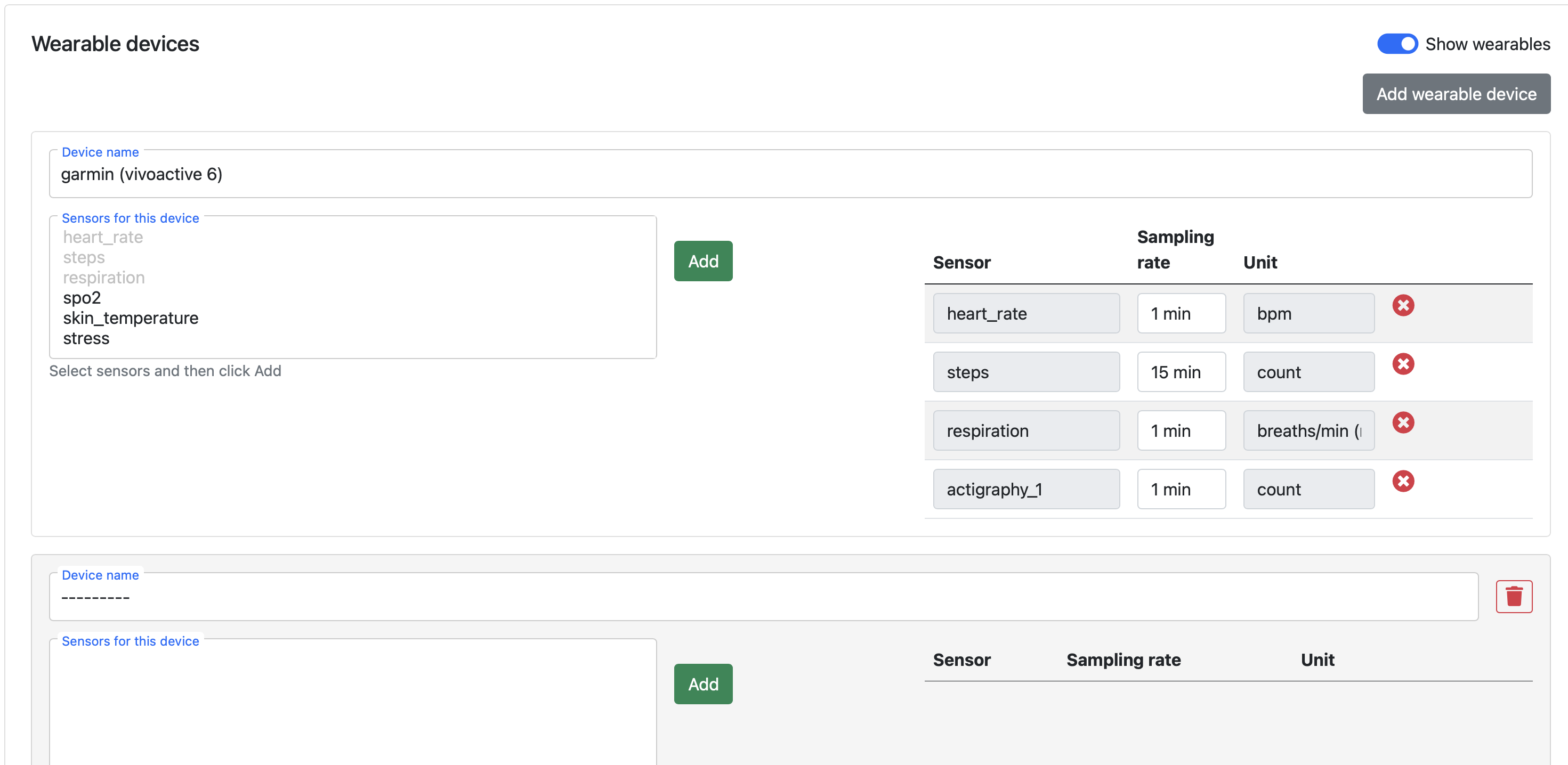
The wearable configuration is automatically downloaded to the participant device after enrollment.
Configure on the Phone (JTrack Social)
Pairing after Enrollment
After successful enrollment into a Garmin-enabled study, participants can pair their Garmin smartwatch directly inside the JTrack Social app by either responding to the popup or going to the Garmin Dashboard and clicking Pair.
The popup will guide the user through the process.
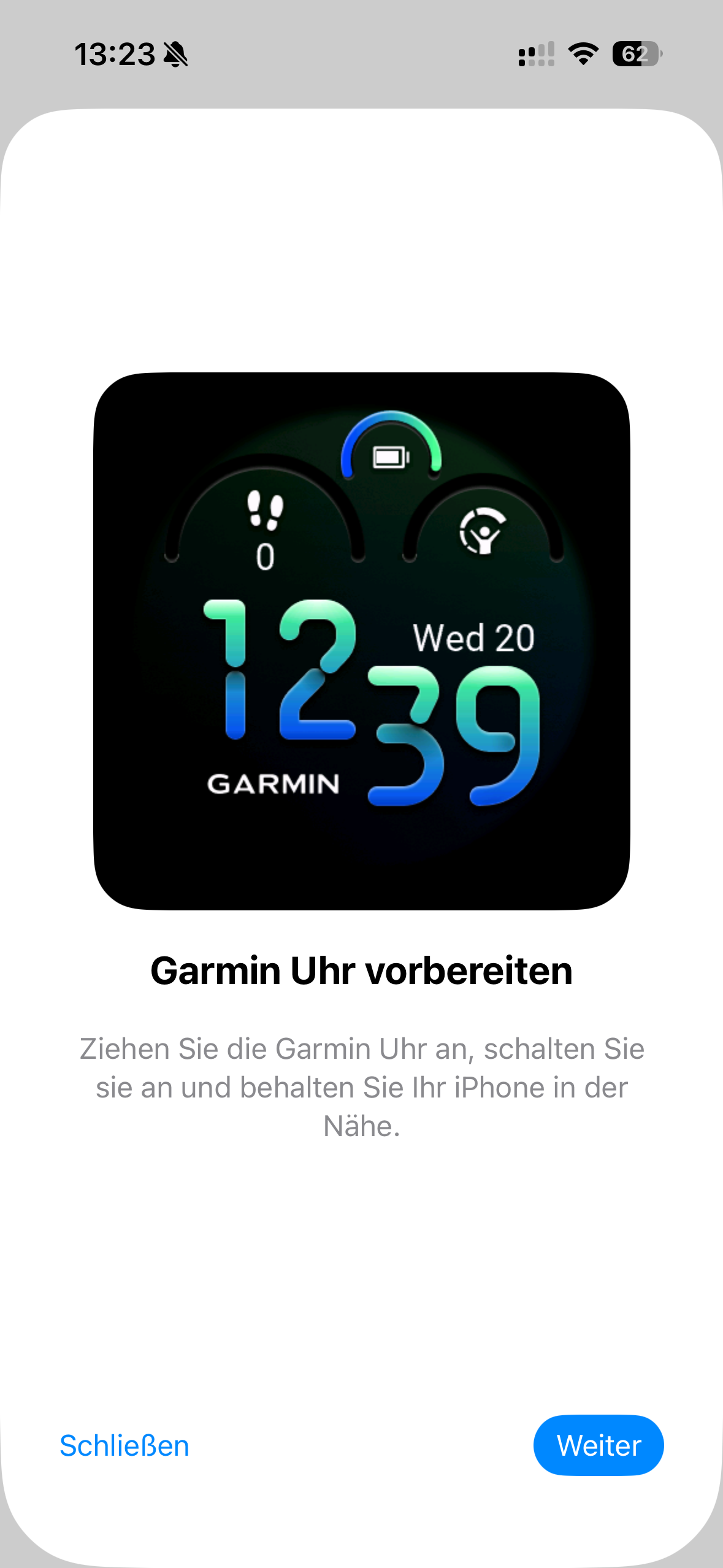
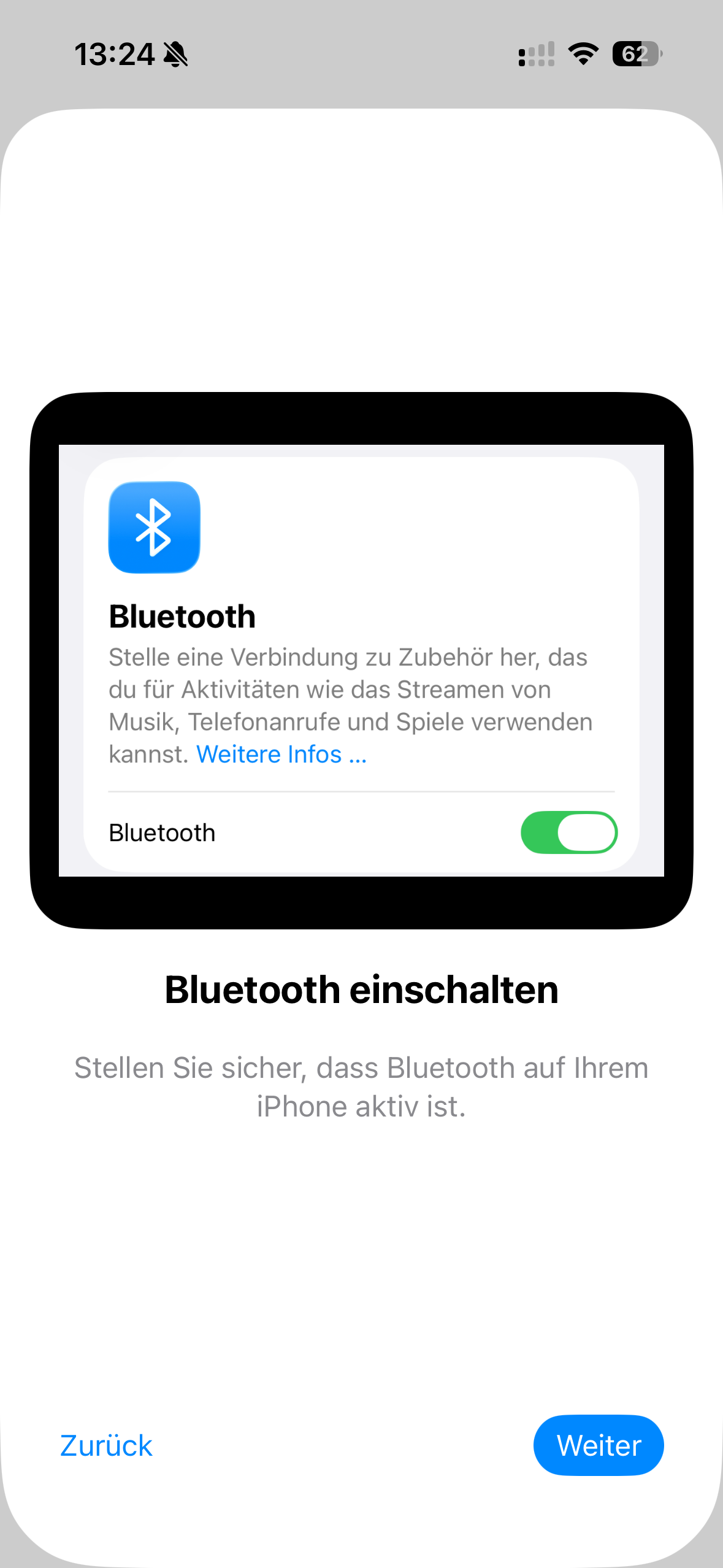
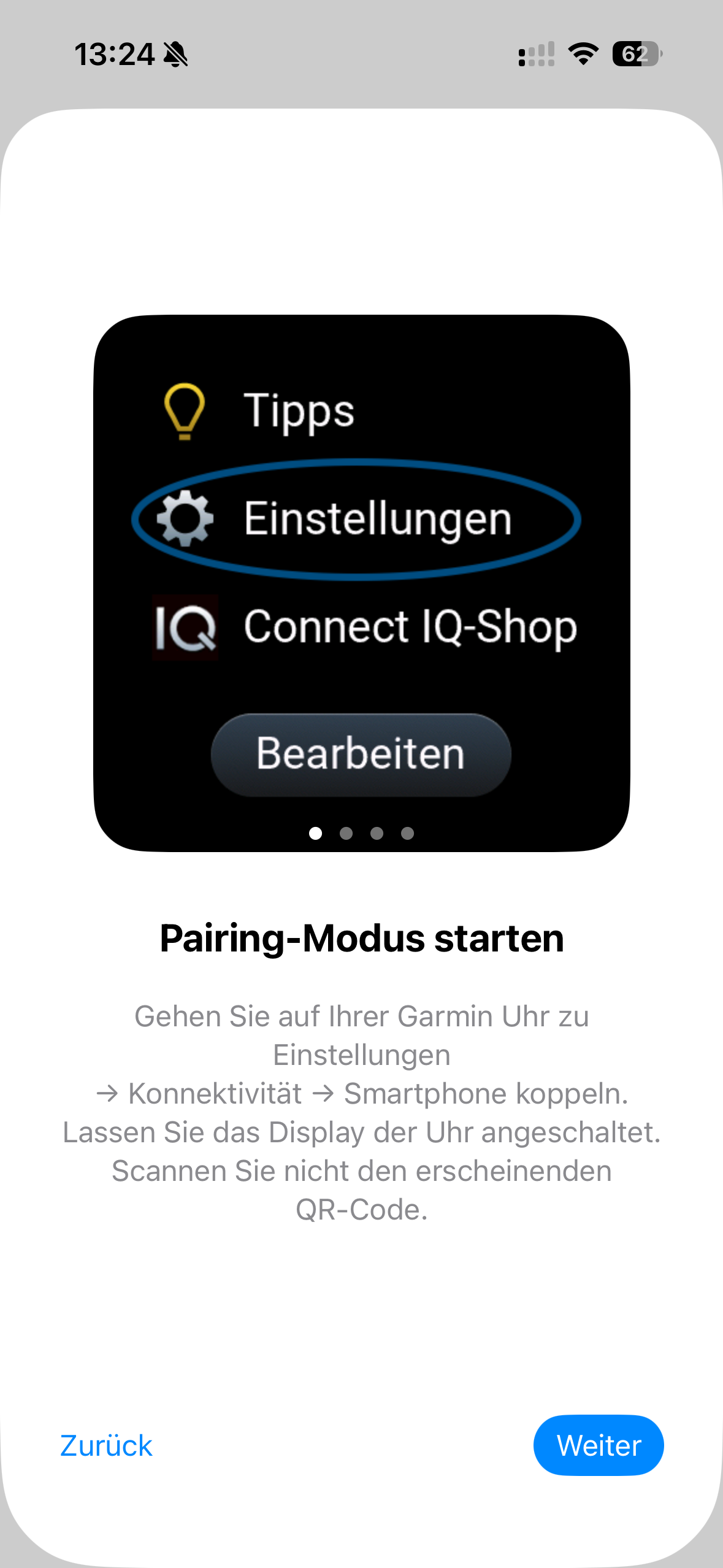
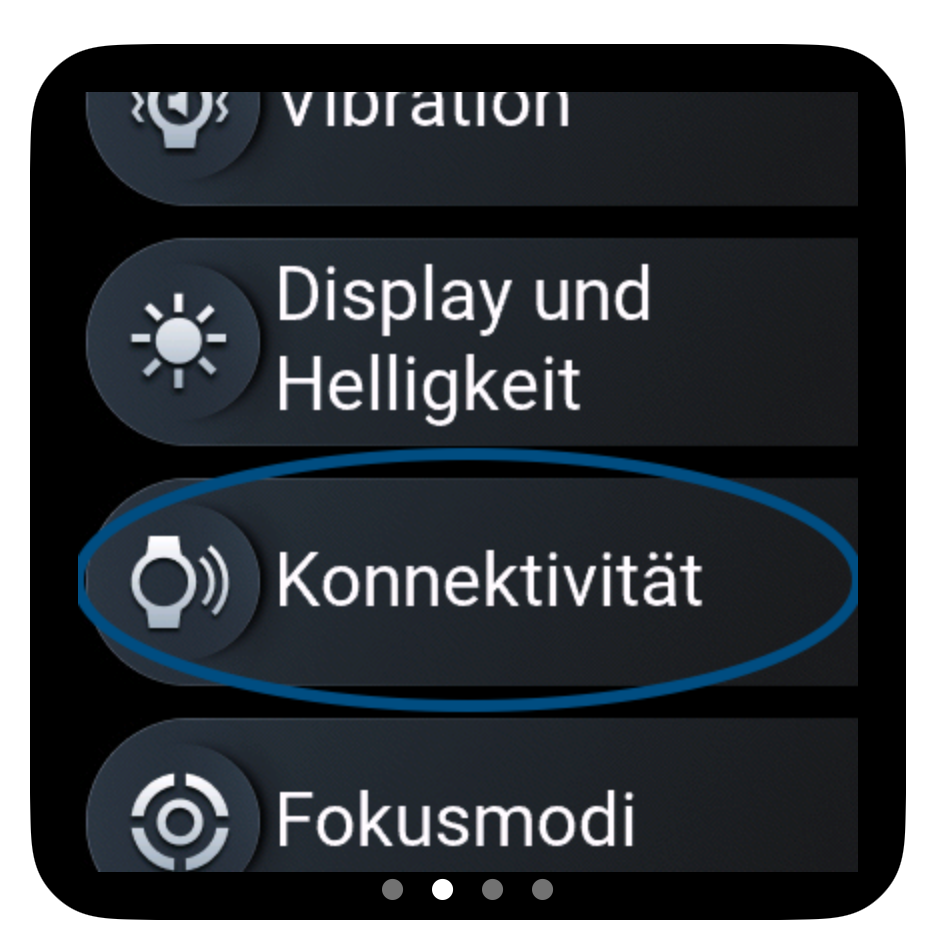
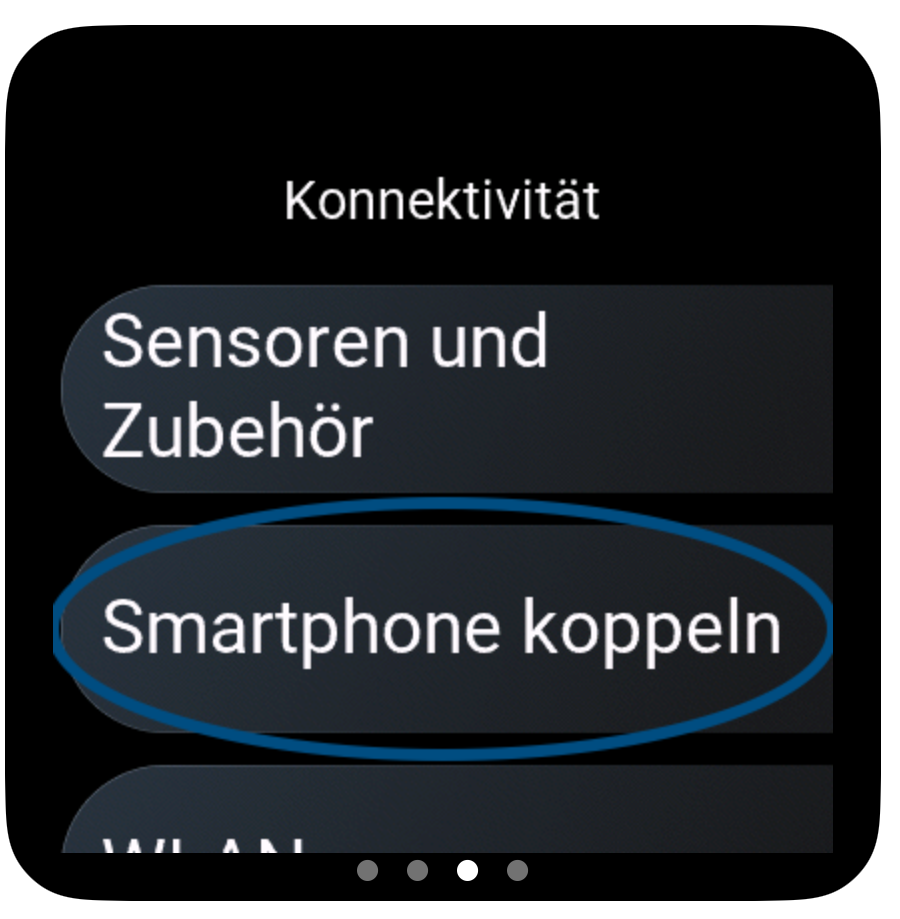
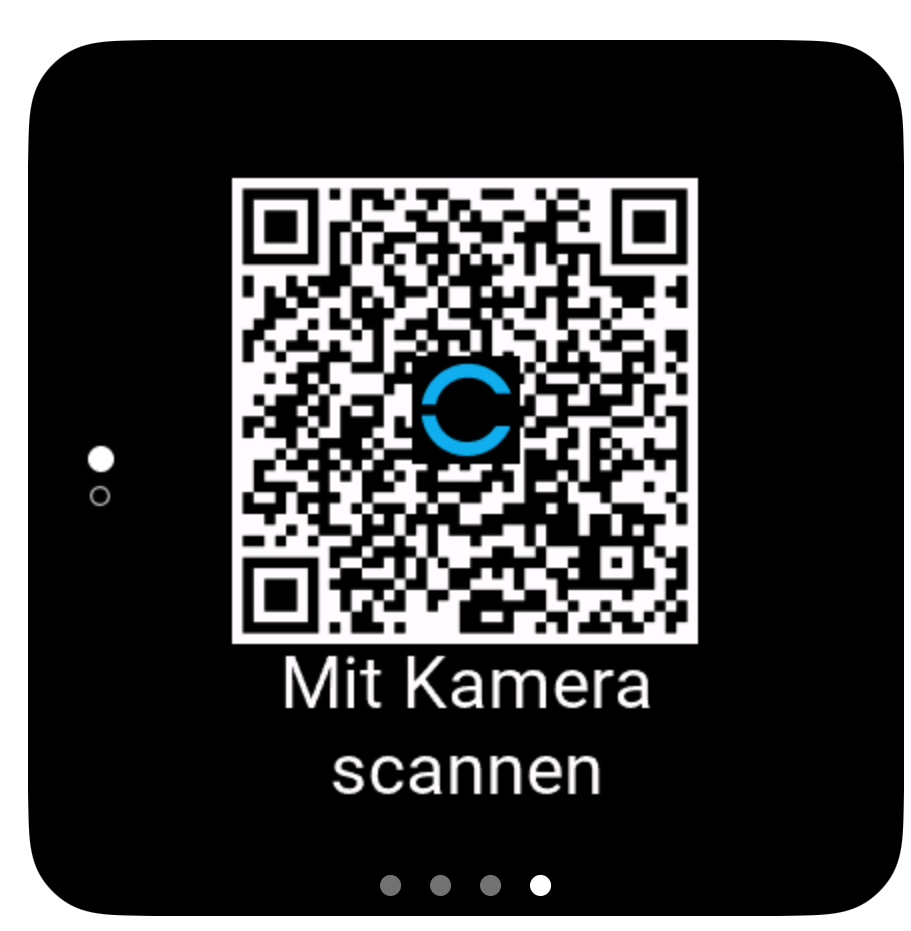
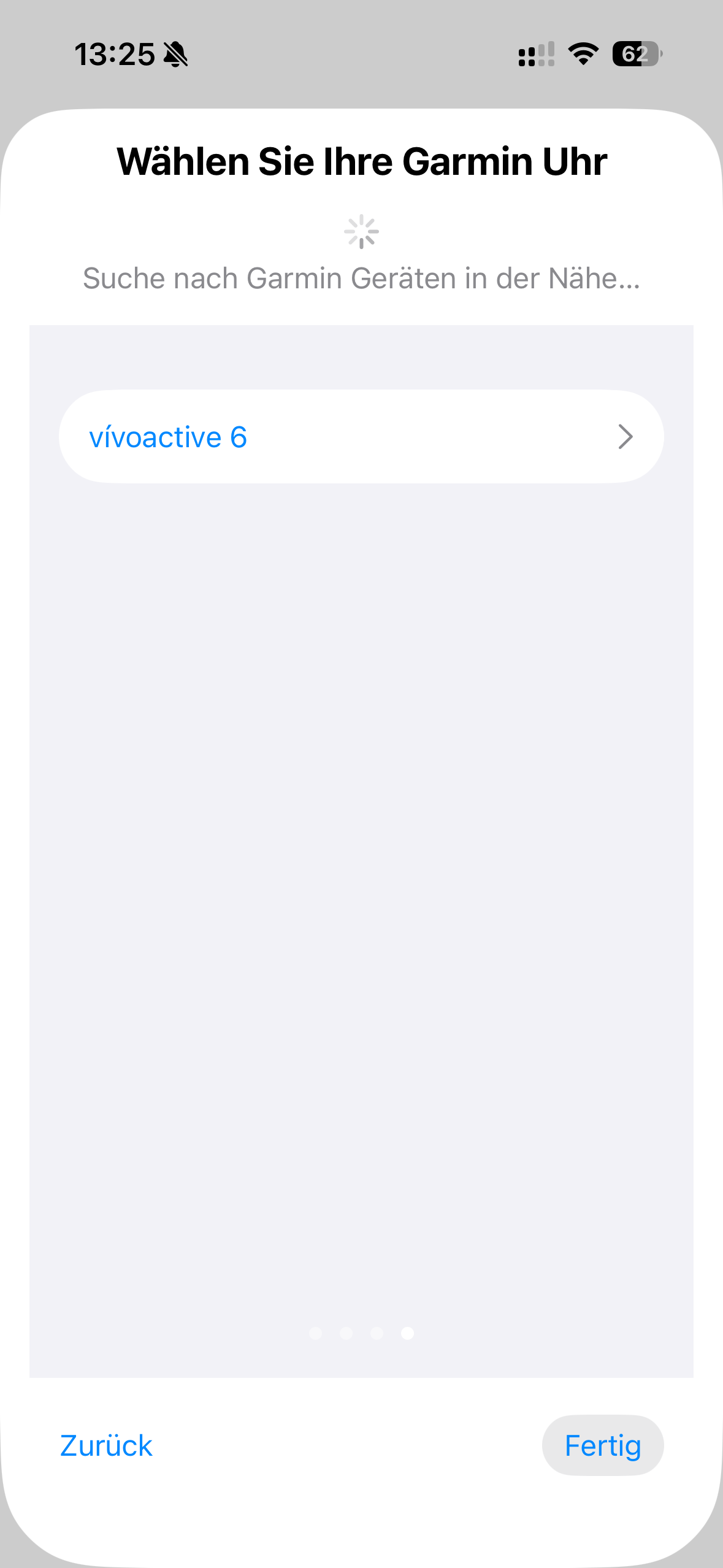
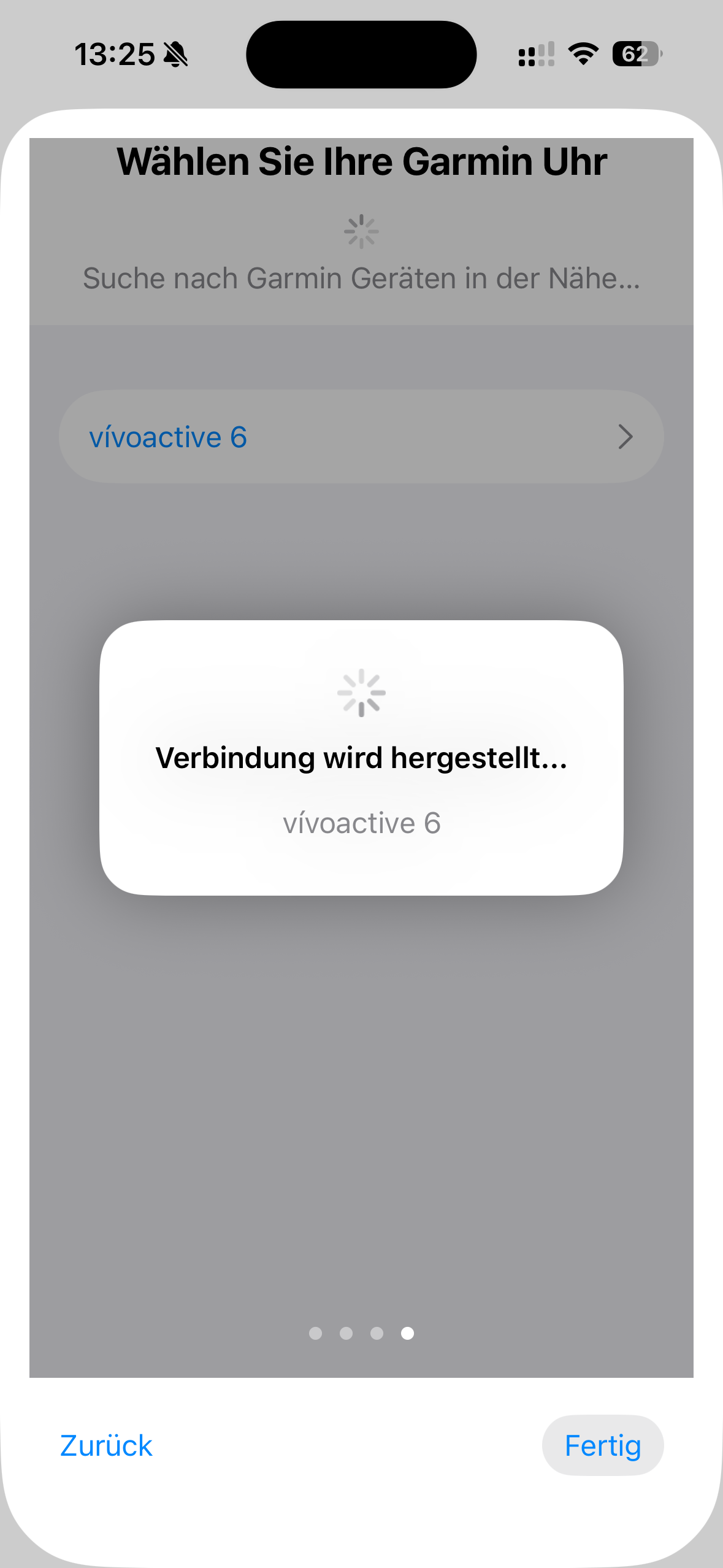
After pairing, JTrack Social automatically configures the Garmin device according to the study settings defined in JDash.
This includes:
Enabled sensors
Sampling intervals
Background synchronization settings
The configuration process may take several seconds.
Configure the Watch
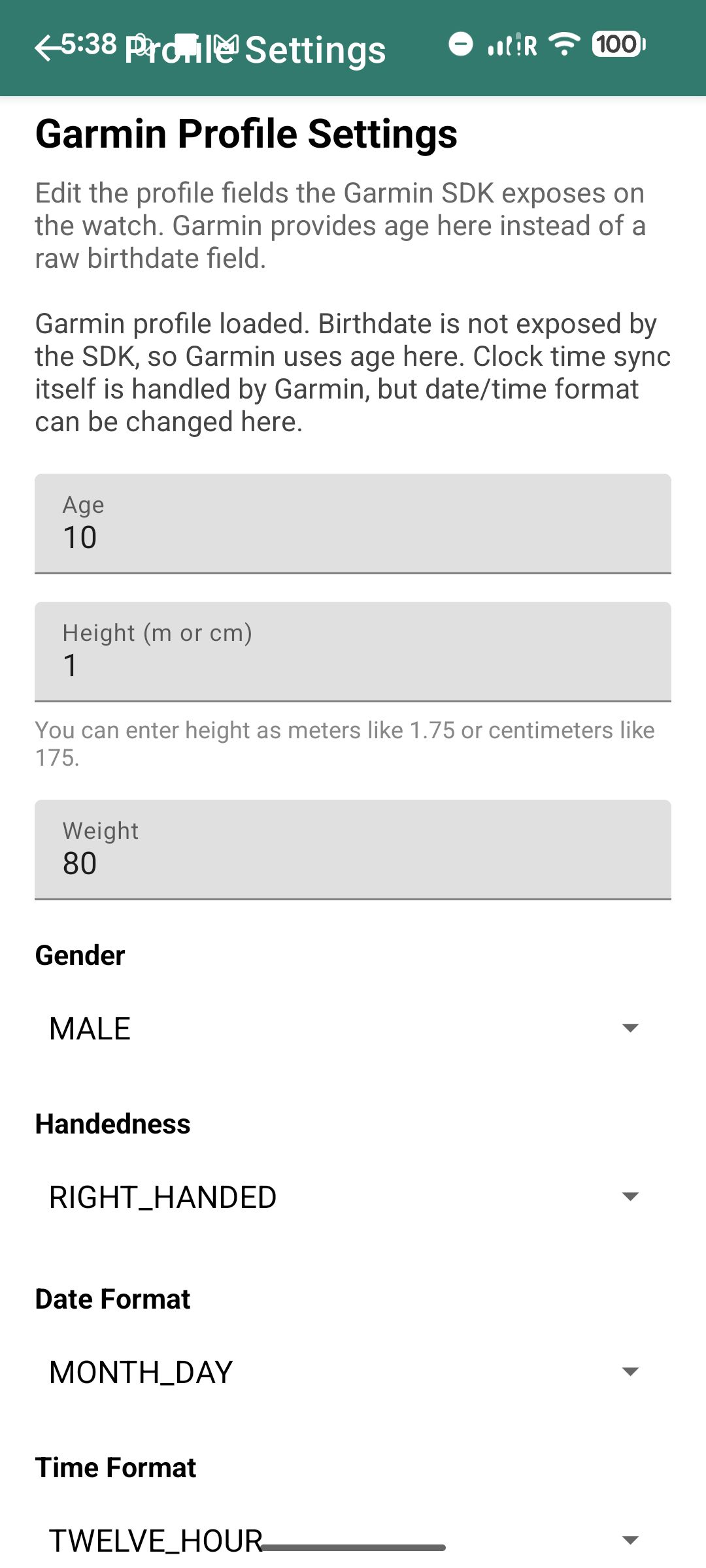
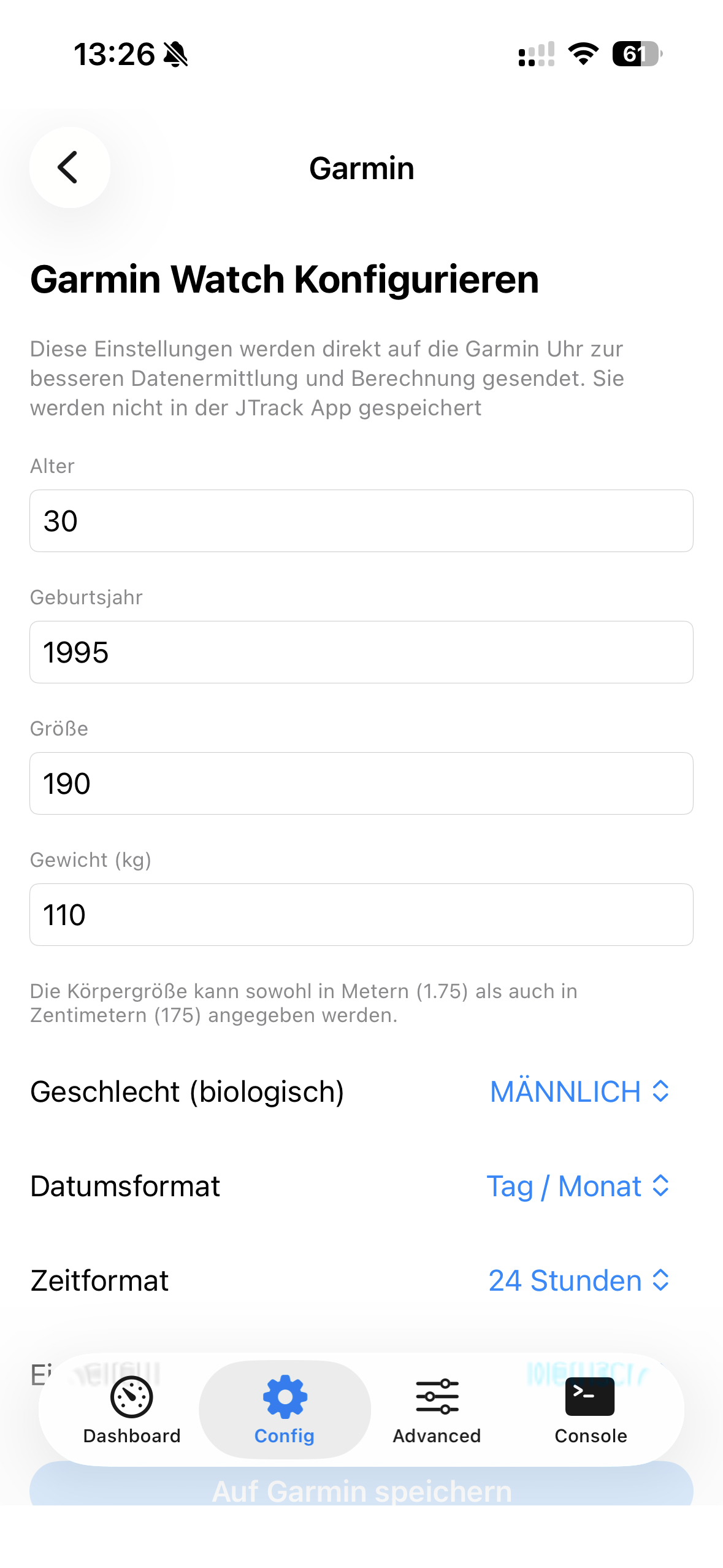
When starting a Garmin watch for the first time information about the user is being asked by the watch (age, gender, weight, height, etc.). This is required by Garmin for internal Watch algorithms to function properly. Occasionally, e.g. if a watch has not been set-up by a participant, an additional configuration of user settings on the watch is needed. Therefore a configuration dialogue appears that asks for relevant information after a successful pairing. These get passed straight to the watch.
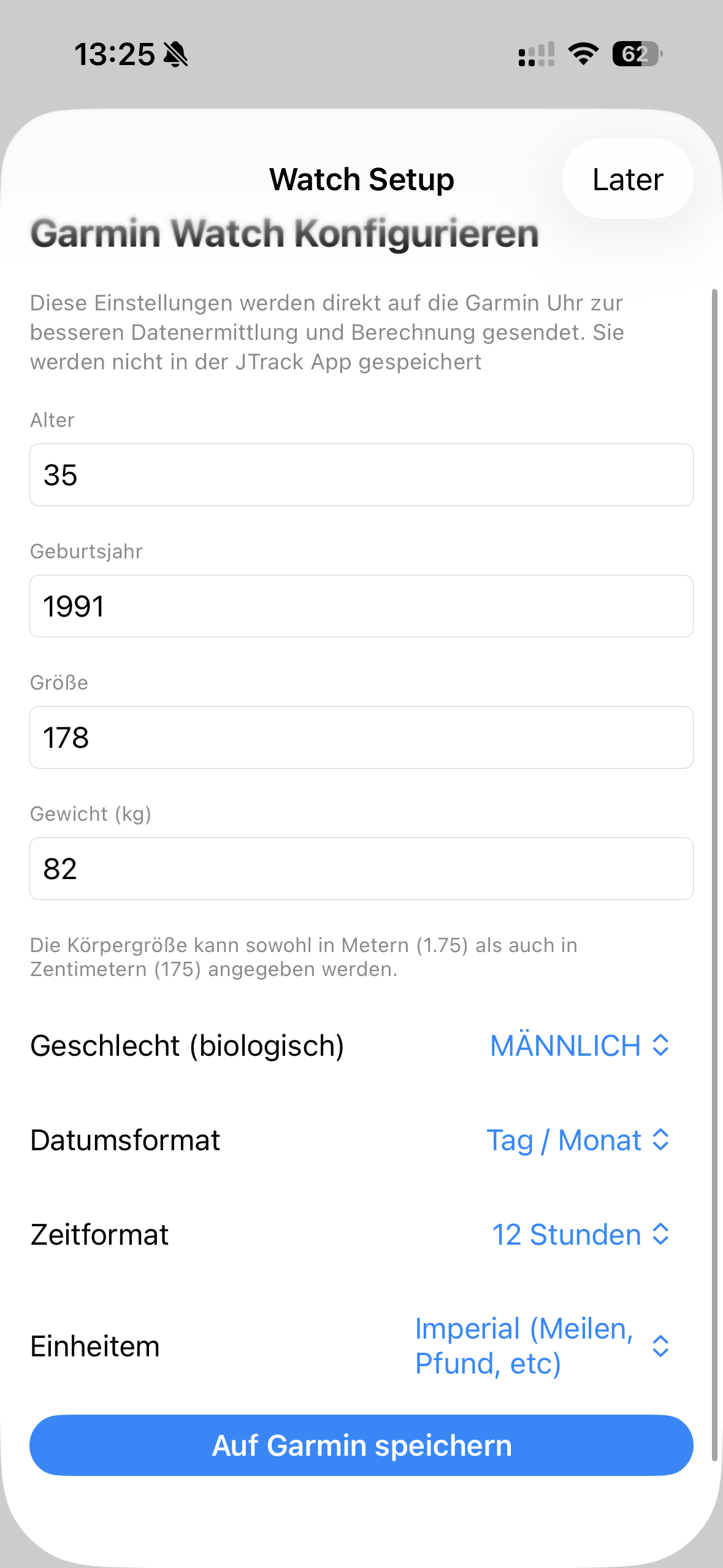
Note
This data is handled with great care and not being stored or examined by JTrack in any way. It solely serves the purpose to improve the accuracy of the data collected by the Garmin watch.
Garmin Dashboard
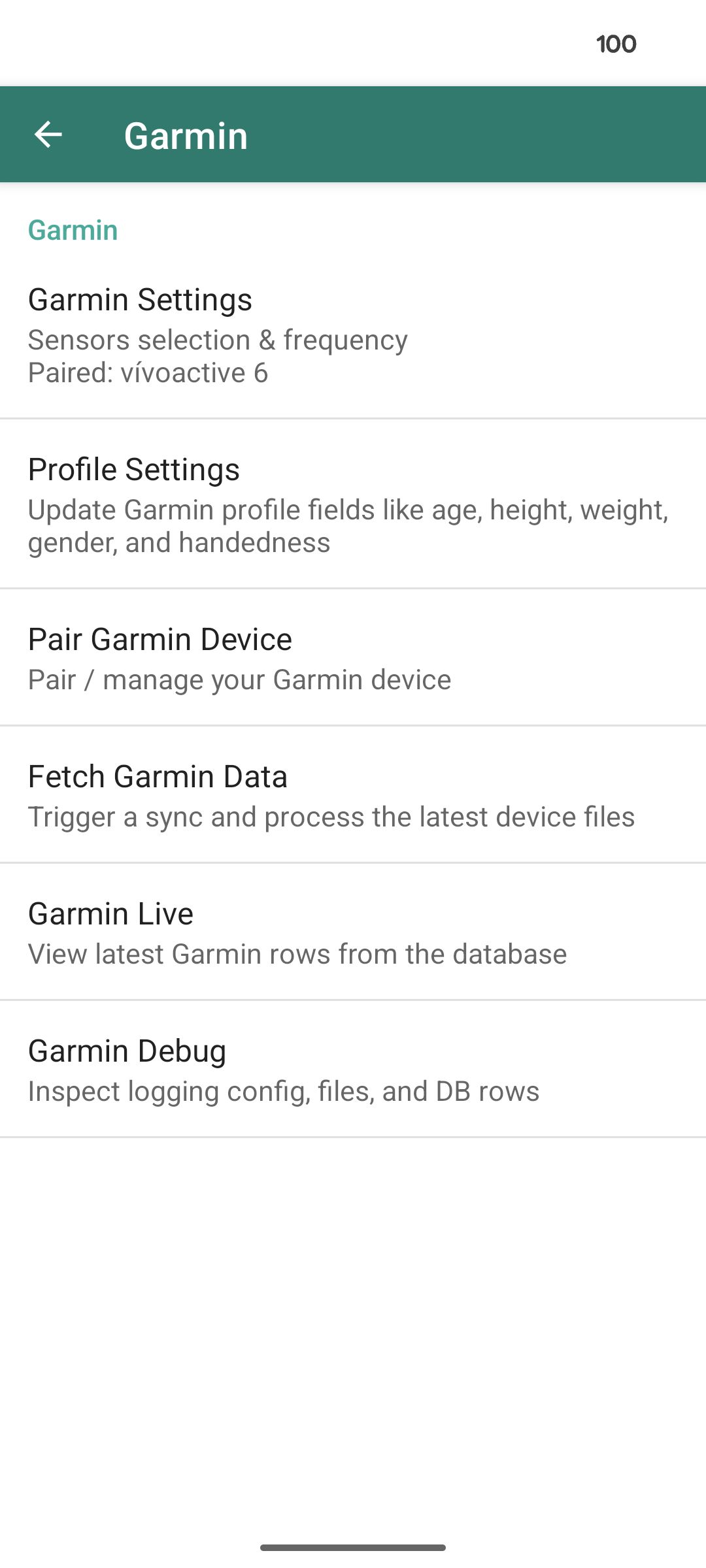
The Garmin Dashboard is accessible from the main menu:
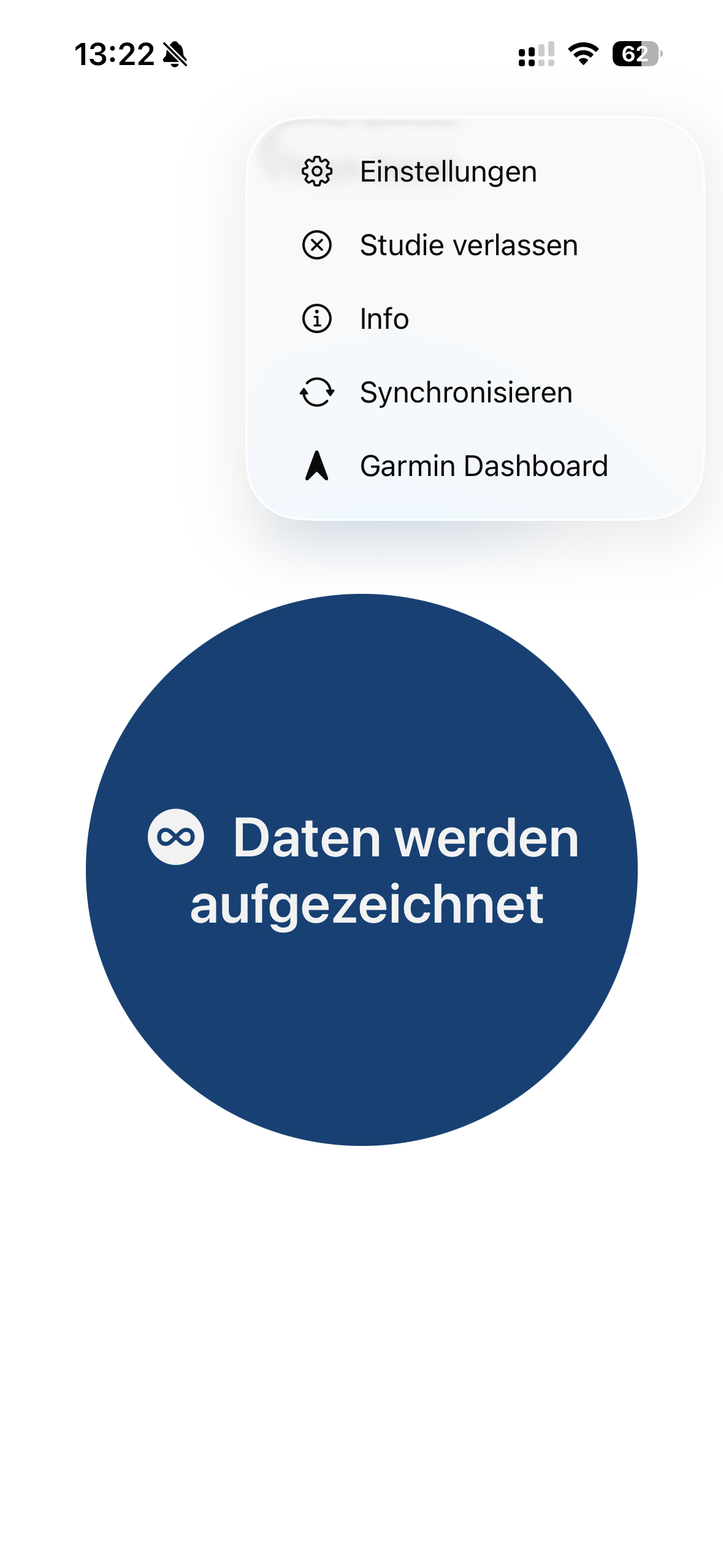
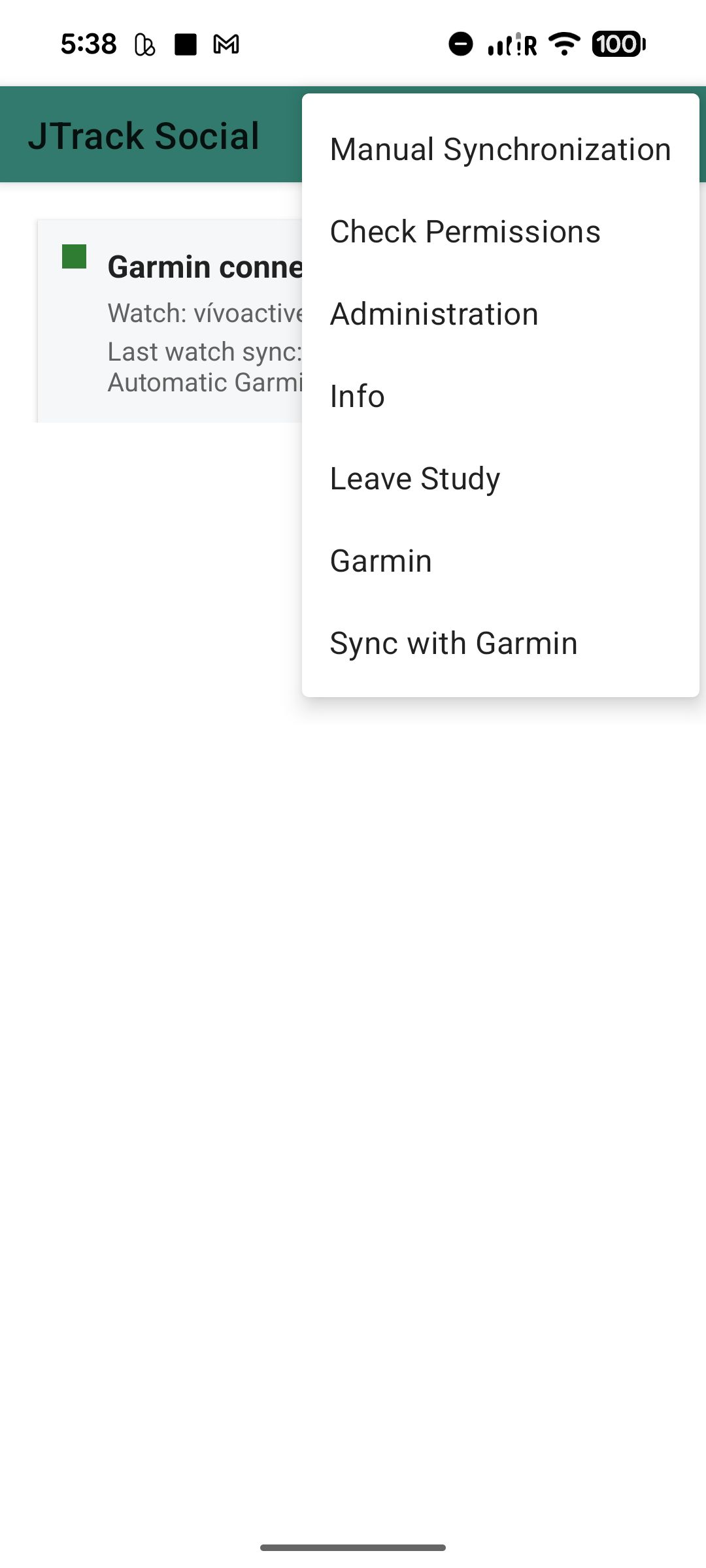
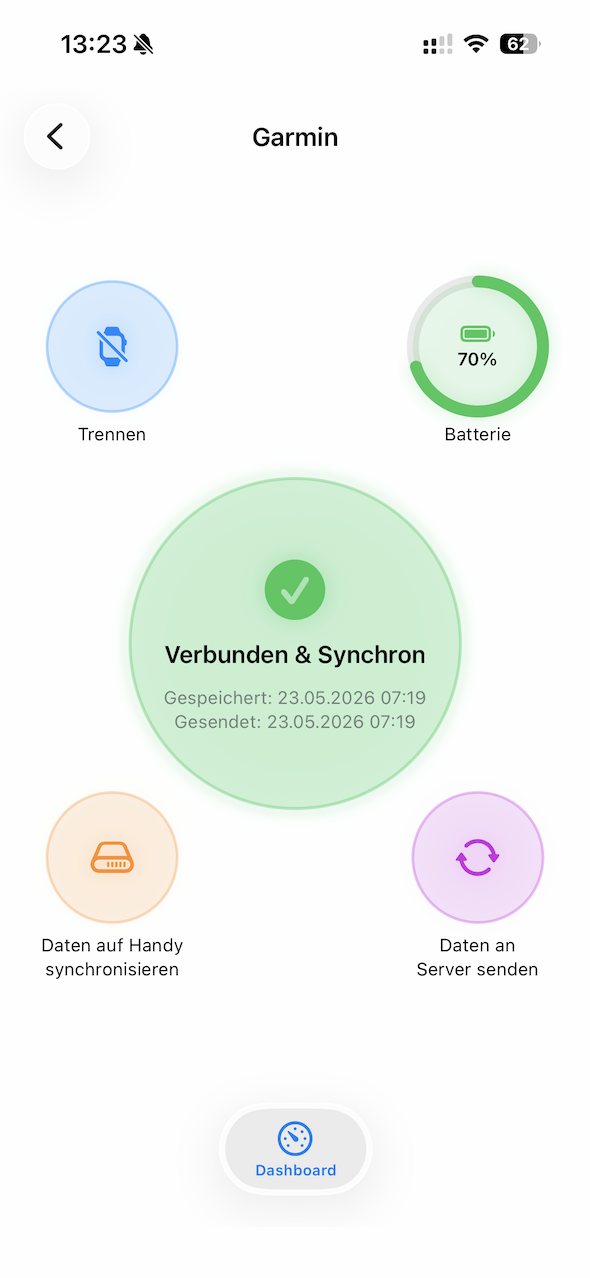
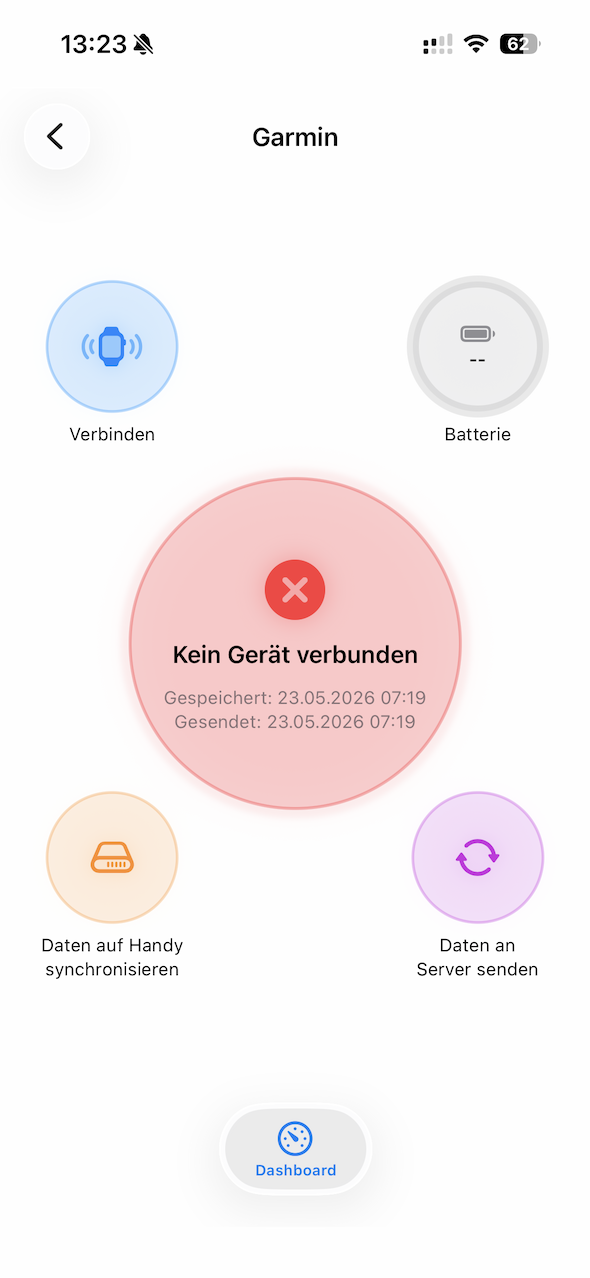
It provides an overview of:
Paired devices
Battery level
Connection state
Last synchronization
Local wearable data status
The dashboard also provides manual synchronization and device management functionality.
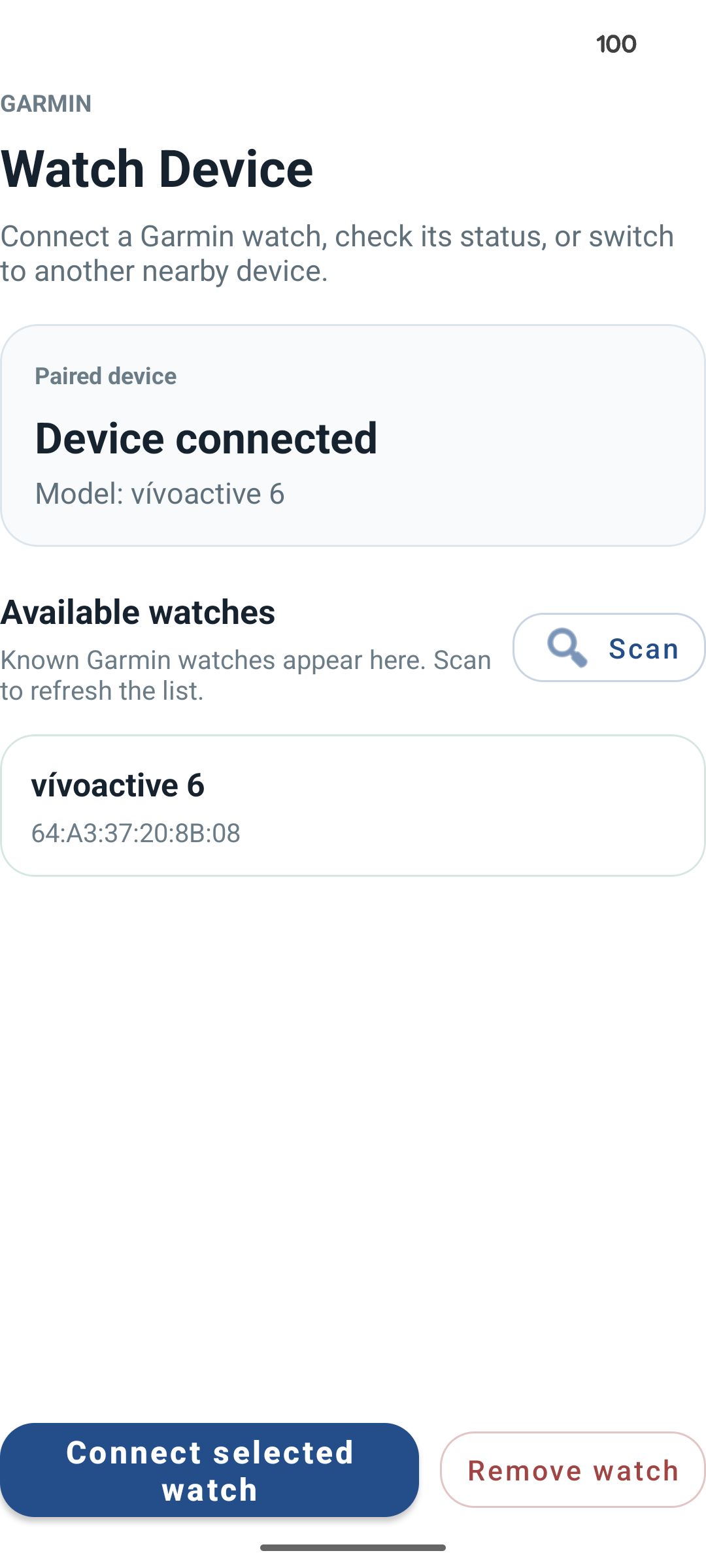
Pair / Unpair Devices
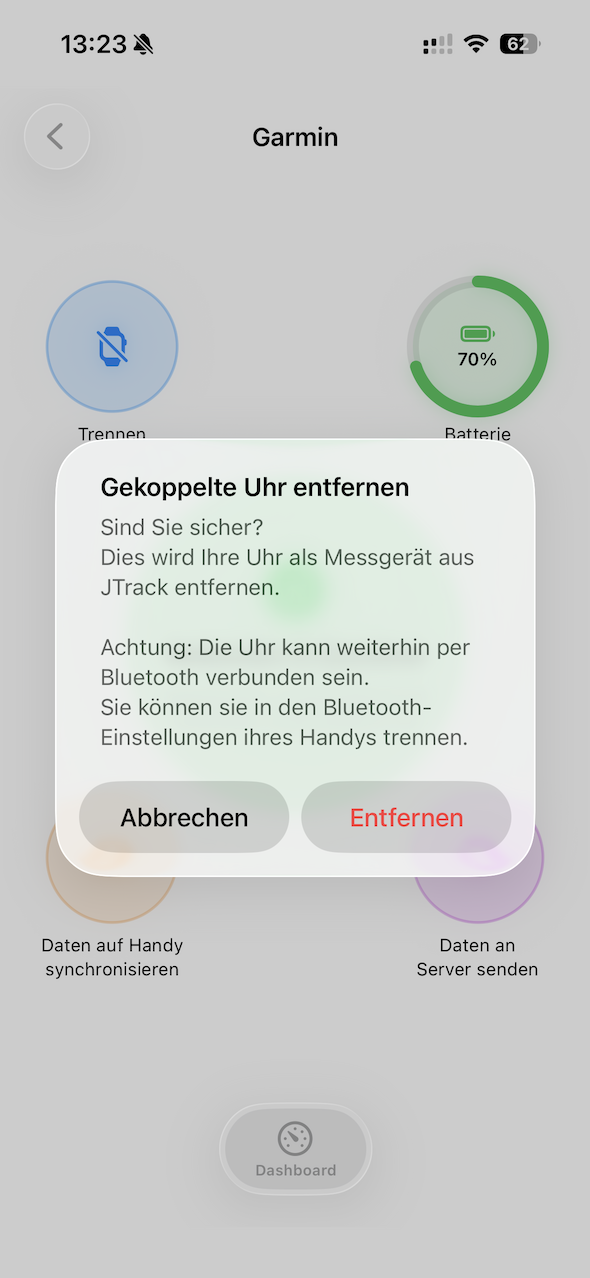
Participants can pair or unpair Garmin devices directly inside the Garmin Dashboard. Pairing works in the same way as explained in Pairing after Enrollment.
Unpairing removes:
Device association
Active synchronization
Watch-side study configuration
Warning
Unpairing a device stops future wearable data collection for the study.
Note
Be aware that the App cannot override iOS Bluetooth settings, so to remove the Bluetooth connection open the Settings App -> Bluetooth and manually remove the Garmin watch.
Sync to Phone
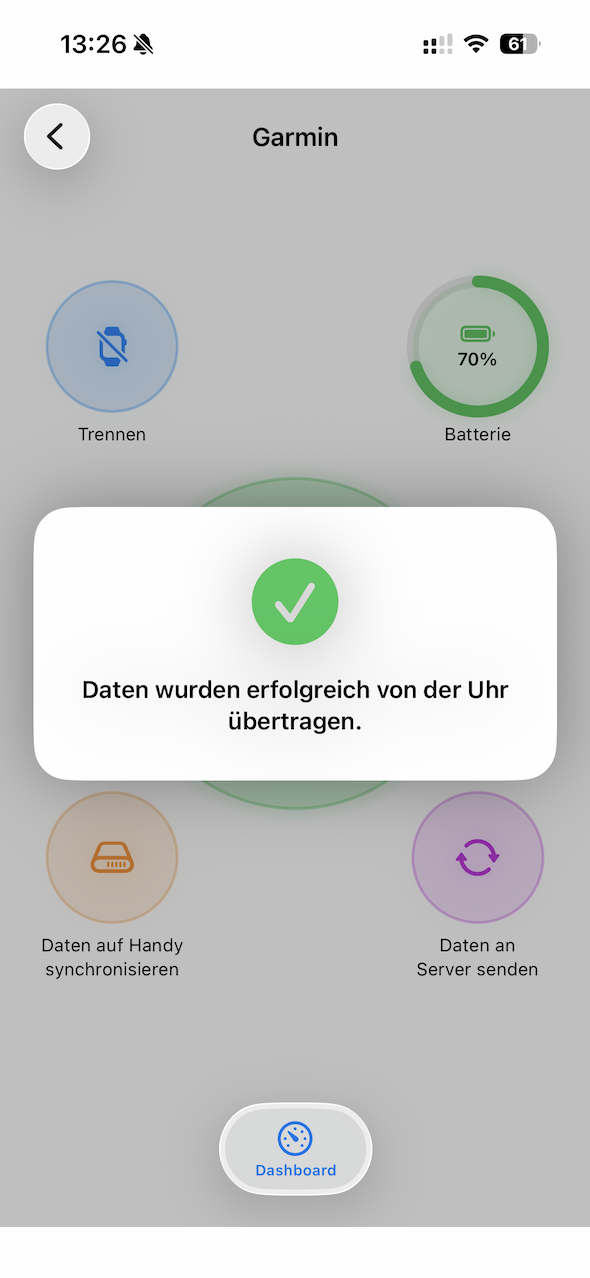
Wearable data is first synchronized locally from the Garmin watch to the participant phone.
Synchronization can occur:
Automatically in the background
When the app becomes active
Manually using
Sync to Phone
The synchronization process downloads new wearable sensor recordings from the watch.
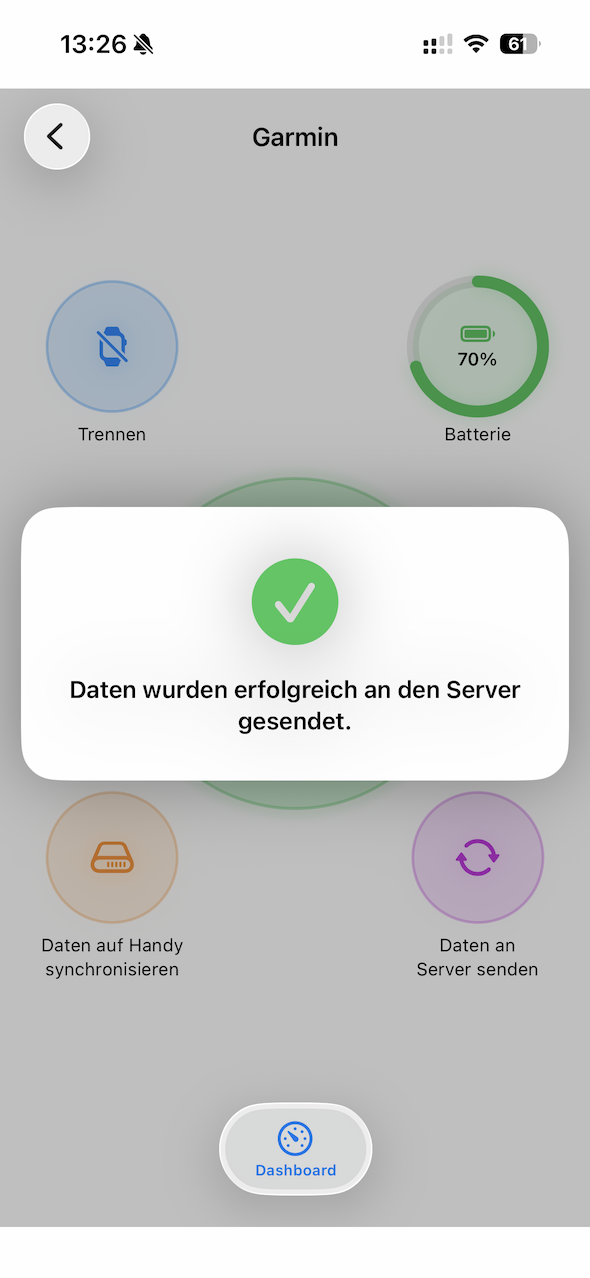
Send to Server
After synchronization to the phone, wearable data can be uploaded securely to the study server.
Uploads occur automatically when all of these conditions are met:
Internet access is available
Wi-Fi restrictions allow uploads
The server is reachable
Background processing is permitted
Participants may also trigger uploads manually.
Firmware Update
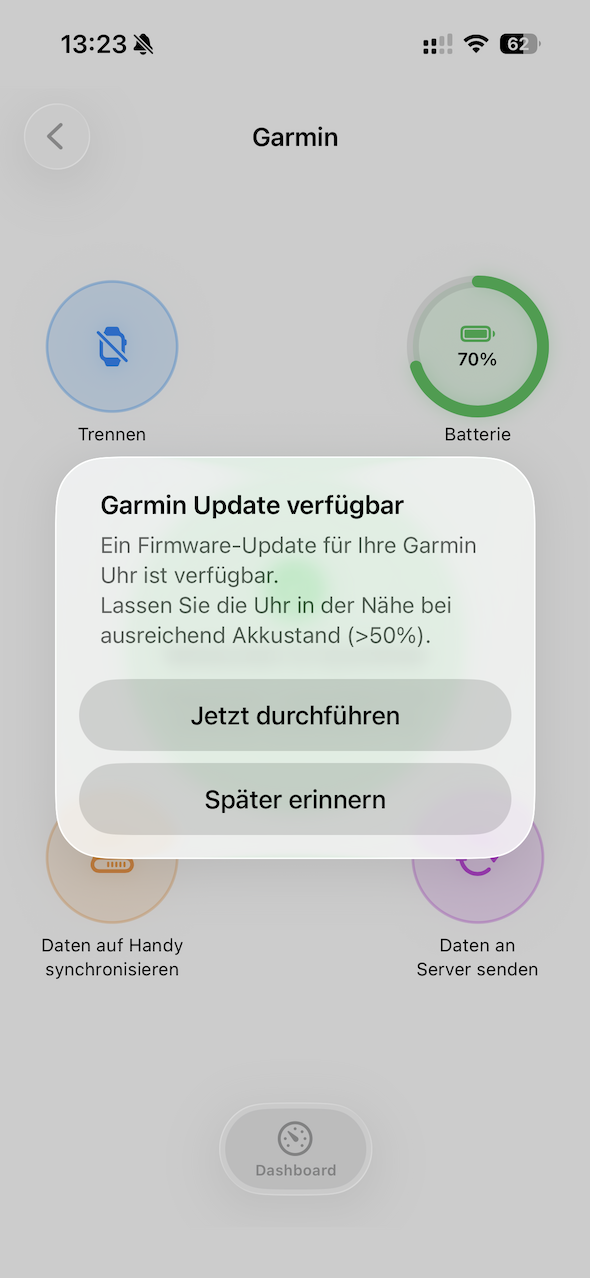
JTrack Social can detect and perform available Garmin firmware updates through the Bluetooth connection.
Participants may be prompted to update the watch firmware. However, updates are not required but might be useful for extended study periods.
Note
Firmware updates are handled through Garmin device services and may require several minutes.
Features for Study Administrators
Overwrite Watch Configuration
Administrators can overwrite the active Garmin watch configuration directly from the app via Settings -> Garmin Dashboard -> Config.
This allows updated user settings (age, gender, weight, height, etc.) for improved accuracy of Garmin measurements.
Note
It may take some time for these changes to be properly applied to the Garmin watch.
Advanced SDK Status
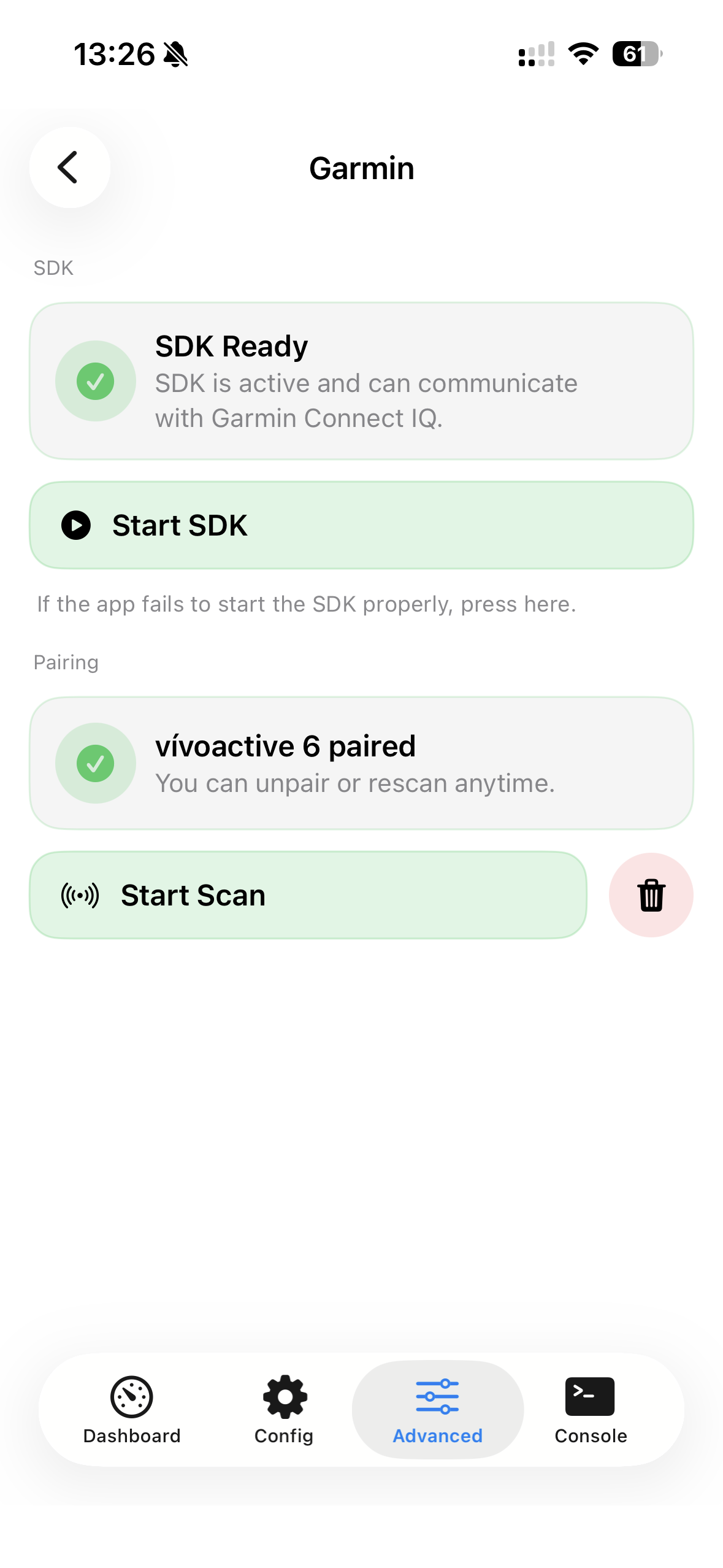
The Garmin Dashboard includes advanced SDK status information for debugging and monitoring via the Advanced tab.
Available information includes:
SDK initialization state
Bluetooth connection state
Device readiness
Console Logging for Debugging
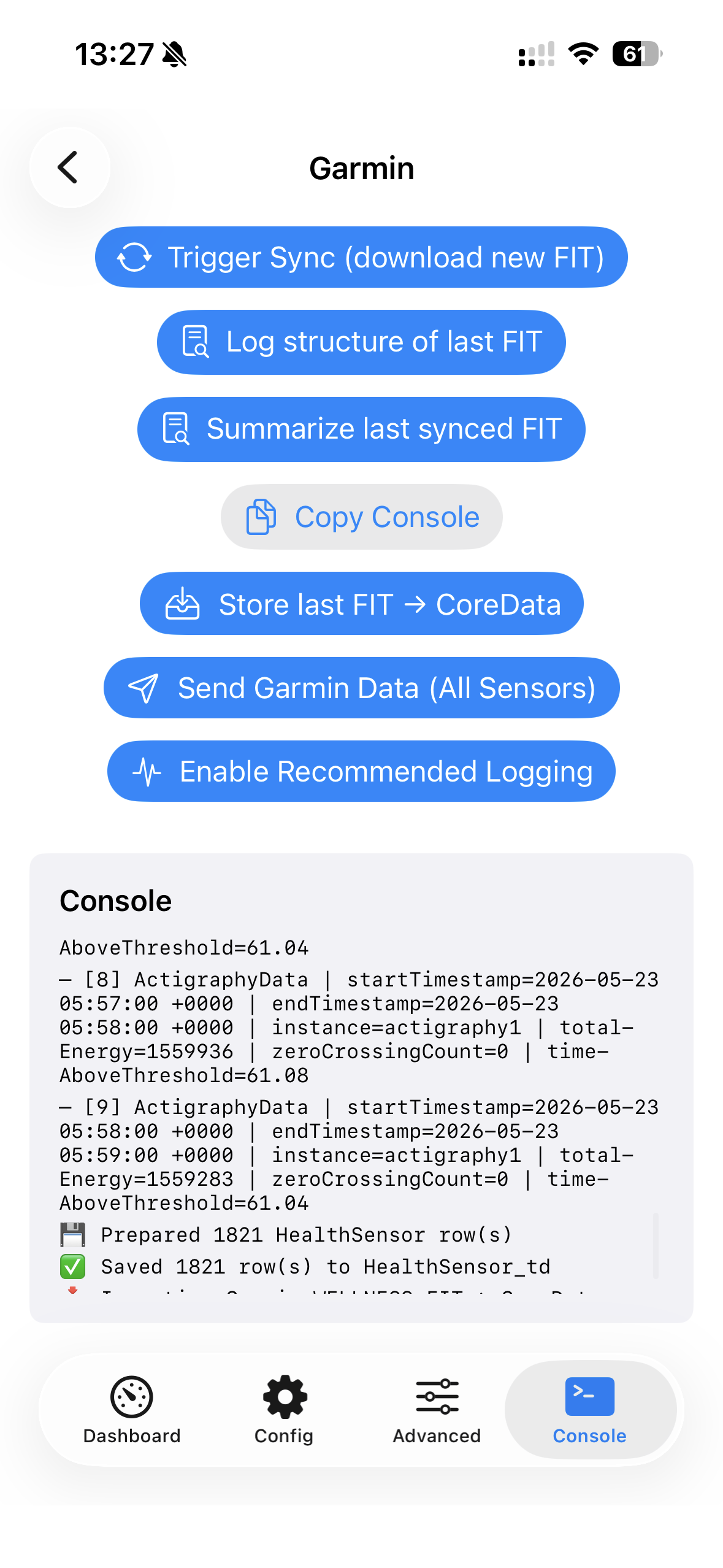
Verbose Garmin SDK console logging is enabled for debugging purposes and can be accessed via the Console tab.
Logs may include:
Pairing events
Synchronization progress
Device communication
Sensor configuration
Snippets of logged data
Upload operations
Warning
Beware that the possible actions here are only for debugging purposes and can temporarily interfere with the participant workflow.